No results for this search. Try another word, or write to us.
Step-by-step guide
Ten steps, in the order people usually take them. Tap a screenshot to enlarge it.
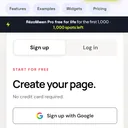 1Create your pageSign-up, page name, activation
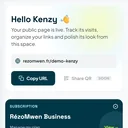 2Find your way around the dashboardOverview, menu and preview
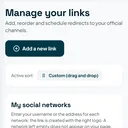 3Add and arrange your linksAdd, reorder, hide
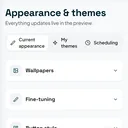 4Customize the lookBackgrounds, colors, buttons, effects
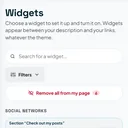 5Add widgetsOpening hours, booking, shop, poll…
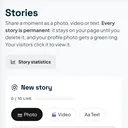 6Post storiesPhoto, video or text, with no time limit
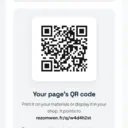 7Share your page and its QR codeLink, QR code, visibility, Google
 8Track your statisticsVisits, clicks, sources, devices
 9Manage your plan and invoicesChange plan, invoices, cancellation
 10Secure your accountPassword, sessions, export, deletion
Screenshots taken on a demo account.
Create your page
It only takes a few minutes, and no credit card.
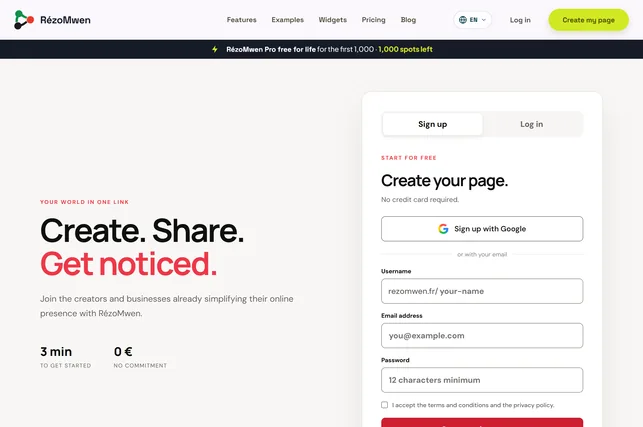
- Tap Create my page at the top of the home page, or sign up straight away with Google.
- Choose your page name: it is what comes after
rezomwen.fr/(3 to 24 letters, digits or dashes). - Enter your email and a password of at least 12 characters, then accept the terms.
- Open the activation email and follow its link: your dashboard opens.
Tip : No email? Check your spam folder, or ask for the link again from the sign-up page.
Find your way around the dashboard
Your starting point: your page address, this month’s figures and access to everything else.
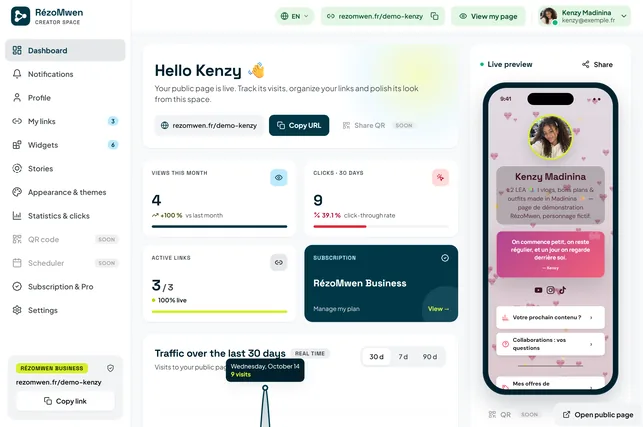
- At the top, copy your page address or open its QR code to share it.
- The cards sum up your views, clicks, active links and plan.
- On a computer, the menu is on the left and the live preview of your page on the right.
- On a phone, the bottom bar holds Menu, Preview and Save.
Tip : Nothing goes live until you save: the preview shows you the result first.
Add and arrange your links
Your links are the heart of your page: social networks, shop, bookings…
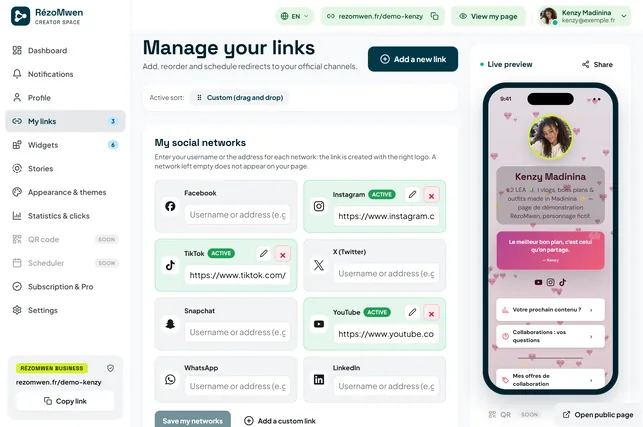
- Open My links and tap Add a new link.
- Give it a title, paste its address, then save.
- Change the order with the arrows, or by dragging it with the mouse.
- The switch hides a link without deleting it; the pencil edits it, the bin deletes it.
Tip : With a paid plan, a link can show only between two dates: handy for a promotion or an event.
Customize the look
Style your page your way, and watch the result live.
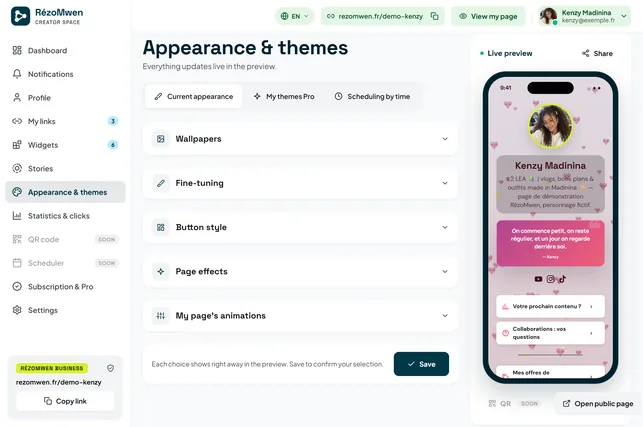
- Open Appearance & themes.
- Expand Wallpapers and tap a color, a gradient or an image.
- Then set the font, button shape and effects in the next panels.
- Check the preview, then save.
Tip : Text and button colors adapt to the background you pick, so everything stays readable.
Add widgets
A widget is a block that does more than a link: opening hours, map, contact form, shop, quiz…
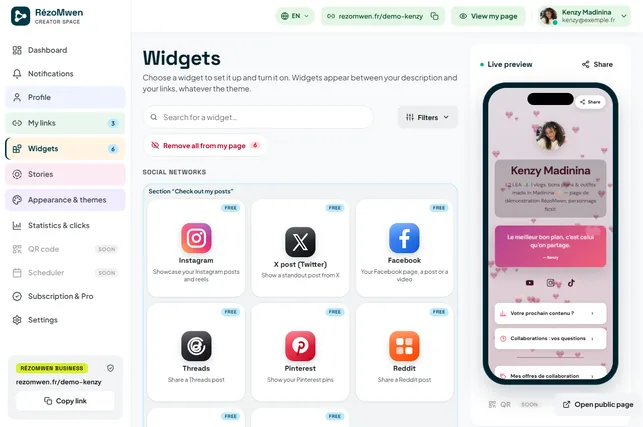
- Open Widgets: search by name, or filter by category.
- Tap a card to set it up; its badge shows the plan it needs.
- Turn it on: the widget appears between your description and your links.
Tip : The full catalog, with a preview of each widget, is on the site’s Widgets page.
Post stories
A story shares a moment as a photo, a video or text. On RézoMwen it stays online until you delete it.
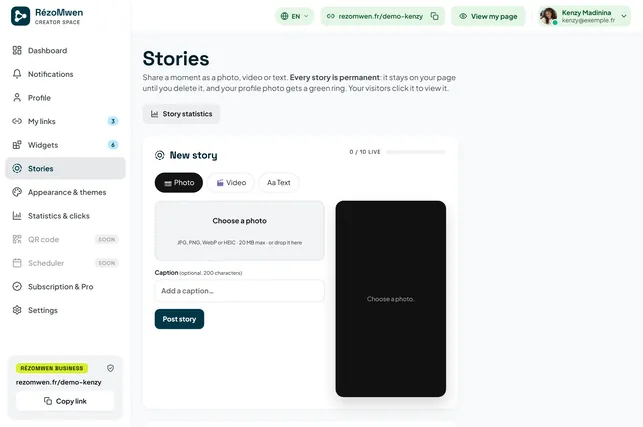
- Open Stories and choose Photo, Video or Text.
- Add your file (or your text) and, if you like, a caption.
- Publish: a ring appears around your profile photo, and visitors tap it to view the story.
Tip : Story statistics shows how each one performs.
Share your page and its QR code
Your page has a fixed address and a QR code ready to print.
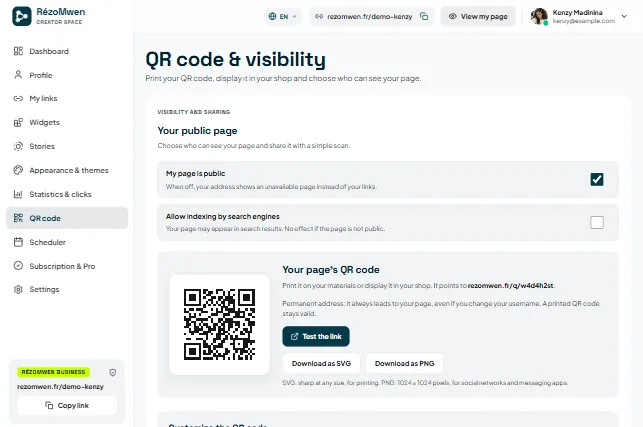
- Copy your link with Copy, at the top of every screen of your dashboard.
- Open QR Code: test it, then download it to print on a card, a shop window or a flyer.
- In the same place, choose whether your page is public and whether Google may list it.
Tip : The QR code always leads to your page, even if you change your username: a code already printed stays valid.
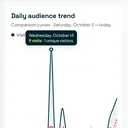
Track your statistics
See what works: how many visits, which links get clicked, where your visitors come from.
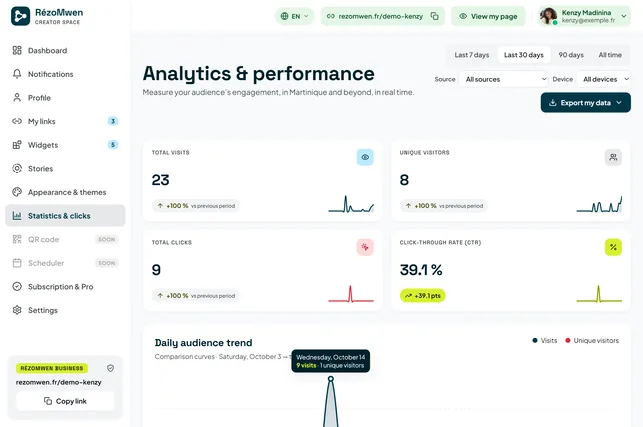
- Open Statistics & clicks.
- Pick the period (7, 30 or 90 days) and, if needed, a source or a device.
- Hover over or tap the chart to read the details of a day.
- Export my data downloads your figures.
Tip : The free plan shows total visits; the details unlock with a paid plan.
Manage your plan and invoices
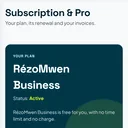
Everything about payment is in Subscription & Pro.
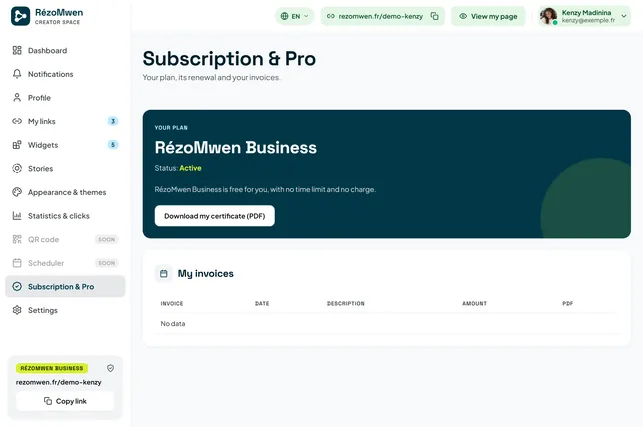
- At the top: your plan, its status and its renewal.
- To change it, compare the plans on the Pricing page.
- Your PDF invoices and your certificate download just below.
- Manage my subscription lets you cancel at any time, free of charge.
Tip : After cancelling, nothing is deleted: the page returns to the free plan at the end of the paid period.
Secure your account
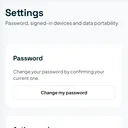
Settings holds your access and your data.
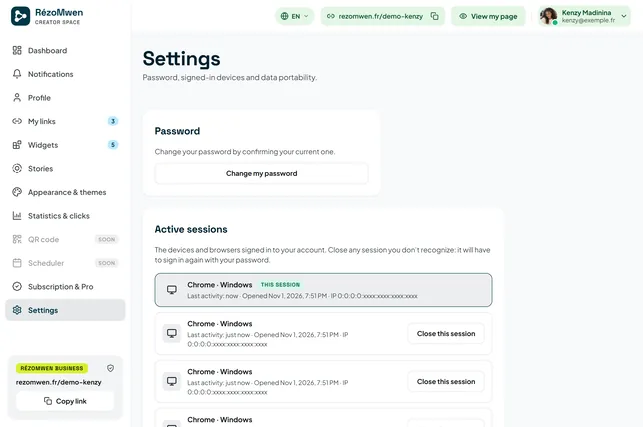
- Change my password: confirm the current one, then choose the new one.
- Active sessions: sign out a device you do not recognize.
- Further down: export all your data, or delete your account.
Tip : An unknown session? Close it, then change your password.
Frequently asked questions
Tap a question to read the answer.
Getting started
Creating a page takes a few minutes, and the free plan is enough to get started.
How do I create my page?
- Open Create my page: choose the name that will follow
rezomwen.fr/, your email address and a password of at least 12 characters, then accept the terms. - Open the activation email and follow its link.
- Confirm your username: it is only reserved at that point.
- In your Dashboard, add your links, then set up the appearance.
Your page goes live as soon as you first save it. Nothing to install, no domain name to buy.
Do I have to pay, or give a credit card?
No. The free plan never expires and asks for no credit card. You only enter a payment method on the day you choose a paid plan on the Pricing page.
Can I sign up with Google?
Yes. The button is on the sign-up page. We then only receive the technical identifier of your Google account, your email address and the name Google shares with us — never your password. An account created this way has no RézoMwen password: deleting the account is confirmed with your email address instead of a password.
I didn't receive the activation email.
First check your spam folder, then check the address you entered — a typo sends the email somewhere else. While your sign-up is pending, the sign-up page offers to resend the link (at most once every two minutes). If nothing arrives, write to us from the Contact page, giving the address you used.
How do I put RézoMwen on my home screen?
The site installs like an app, without going through a store: on the home page, tap “Add to home screen” and follow the three steps shown for your device (iPhone, Android or computer).
My address and my links
Your page lives at a single address, and it is the content that changes — never the link you have shared.
What names can I choose for my address?
3 to 24 characters: letters, numbers, hyphens and underscores (_). No spaces, accents or dots. A few names are reserved: those of the site's pages (tarifs, contact, aide…) and terms that could be confused with the service itself. If the name you ask for is taken or reserved, the form tells you before the account is created.
Can I change my page address later?
Yes, from Dashboard → Profile. Good news: your old addresses still lead to your page, so links already shared and QR codes already printed are not lost. The new address becomes the page's official address, the one search engines keep.
How many links can I add?
The free plan shows 20, paid plans an unlimited number. You can save more while staying free: only the first ones are then displayed, the others are kept and reappear as soon as you subscribe. Full comparison on the Pricing page.
How do I reorder my links?
Each link has two buttons, up and down, which work by touch as well as with the keyboard, and links can also be dragged and dropped with the mouse on a computer. The saved order is the one your visitors see.
Can a link be shown for a limited time only?
Yes, with a paid plan: a link accepts a start date and an end date for display. Handy for ticket sales, a promotion or an event: the link appears and disappears on its own, on Martinique time, the service's reference time zone.
Do my links really take people off my page?
Yes: a visitor who taps a link goes straight to the destination you entered. Clicks are counted along the way, for your statistics, with no intermediate page and no advertising redirect.
Appearance, widgets and stories
A RézoMwen page is more than a list of links: it can be styled, and it can hold blocks that actually do something.
How do I change the colors, the photo or the font?
It's all in Dashboard → Appearance & Themes: theme, colors, background image, visual effects, font, button shape and layout. The preview alongside shows the result before you save. The free plan offers a white, black or gray background and the default profile photo; paid plans unlock the rest.
What is a widget?
A block placed on your page that does more than a link: opening hours, directions, photo gallery, music or video player, FAQ, poll, quiz, guestbook, newsletter sign-up, tips, loyalty card, restaurant menu, appointment booking… You add them from Dashboard → Widgets, where each card shows the plan the widget requires. The full catalog, with a preview of each one, is on the site's “Widgets” page, available from the main menu.
What is a story?
A moment shared as a photo, a video or text. Unlike stories on social networks, RézoMwen stories are permanent: they stay on your page until you delete them, and your profile photo gets a ring around it to show they are there. You manage them from Dashboard → Stories.
Does my page look good on a phone?
It is designed for phones first: that is where the vast majority of visits to a link page come from. It stays readable on tablets and computers, and loads without any font or script fetched from a third party.
Statistics and QR code
Knowing what gets clicked beats guessing.
What statistics do I get?
The free plan shows the total number of visits to your profile. Paid plans unlock the details, in Statistics & Clicks: trends over time, clicks link by link, devices, traffic sources, countries and reference cities, history. How long data is kept depends on the plan; it is shown on the Pricing page.
Where is my page's QR code?
In Dashboard → QR Code. It can be shown full screen to be scanned from another phone, and downloaded to be printed on a card, a shop window or a flyer. It points to your page's address: its content can change as often as you like, and the printed code stays valid.
Does my page show up on Google?
It's up to you. Two independent settings: make the page public or not, and allow or refuse its indexing by search engines. Public pages that allow it are listed in the sitemap; those that refuse it remain reachable at their address but are not indexed.
Plans and payment
Prices, the contents of each plan and the comparison table are all on the Pricing page: it is the only page that is authoritative.
How do I upgrade to a paid plan?
From the Pricing page or from Subscription & Pro in your account. You choose the plan and the billing period — monthly or yearly, yearly being cheaper per month — then you pay. Access is granted immediately once the payment is confirmed.
How does payment work?
By card, through Stripe, our payment provider. The card number is entered and processed at Stripe: RézoMwen never sees or stores it. Payment is due in advance at the start of each period, and the subscription renews automatically until it is canceled.
Where are my invoices?
In Subscription & Pro: a PDF invoice is available after each payment, and a subscription certificate can also be downloaded there. Invoices show the billing name and address you provide.
How do I cancel?
In Subscription & Pro, “Manage my subscription” button: canceling there is free and possible at any time, without having to write to us. It takes effect at the end of the period already paid; until then everything stays available, and a confirmation giving the end date is sent to you by email. After that, the page goes back to the free plan: nothing is deleted, whatever exceeds the free plan simply stops being displayed.
Can I get a refund?
As a consumer, you have a 14-day right of withdrawal from the date you subscribe, with no need to give a reason: a clear statement by email is enough, and a model withdrawal form is included in the terms and conditions. If you asked for the service to start right away, the amount for the period already used remains due. After that period, a period already started is not refunded, except in the event of a failure on our part or a legal provision to the contrary.
Can prices go up?
Only for the future, and never by surprise: you are informed at least 30 days before your next renewal and can cancel before the new price applies.
Account and sign-in
Everything related to your access is managed from the Settings page.
I forgot my password.
Request a reset link from Forgot password: you will receive an email with a link valid for one hour, usable once. If your account was created with Google, it has no password: log in with the Google button. Account created with Facebook, whose sign-in is no longer offered: request this link to choose a password.
How do I change my password?
From Settings → Password, by confirming your current password.
How can I tell who is signed in to my account?
Settings → Active sessions lists open sessions with their date, device and browser, and lets you close them. A session you don't recognize: close it, then change your password.
My data
The full details are in the privacy policy. The essentials come down to three answers.
How do I get back everything I've put on RézoMwen?
From Settings → Export my data: a JSON file containing your account, your profile, your links, your widgets, your stories, your settings and your billing history. No request to send, no reply to wait for.
How do I delete my account?
From Settings → Delete my account, after confirming with your password (or with your email address for an account without a password). Deletion is permanent: the public page disappears, and the content and uploaded files are erased. Only the records the law requires us to keep are retained — invoices, for ten years, and proof that you accepted the terms. Remember to export your data first.
An active paid subscription must be canceled first: the page tells you so and sends you there, so that deleting your account doesn't leave a payment running behind it.
Do you use cookies?
No audience measurement or advertising cookies: no Google Analytics, no Meta, TikTok or Google Ads pixel, and no font or library loaded from a third party. Visits are counted internally on the server. The “Cookies” link, in the footer of every page on the site, opens the details and lets you refuse even the anonymous identifiers that connect two pages of the same visit. Refusing takes a single click, just like accepting.
Report content
How do I report an abusive profile or link?
Through the “Report a profile or link” tab on the Contact page. This form is available without an account. Give the address of the page concerned, the reason and why the content seems unlawful to you: the more precise the report, the faster it is handled. Every report is reviewed, and its author is told what action was taken if they left an email address.
Someone is using my name or my photos.
Report the page with the same form, choosing the reason “identity theft” or “copyright infringement”, and explain what belongs to you and what proves it. For a formal request, write to contact@madakick.com: it is the publisher's point of contact, including for the authorities.
I didn't find my answer
Write to us using the contact form: every message gets an acknowledgment by email with a case number. Tell us what you were trying to do, what happened, and which device you were using: that is often what lets us answer right the first time.
You can also write directly to contact@madakick.com. And if you were rather looking for who is behind the service: that's the About page.